Open Community Articles
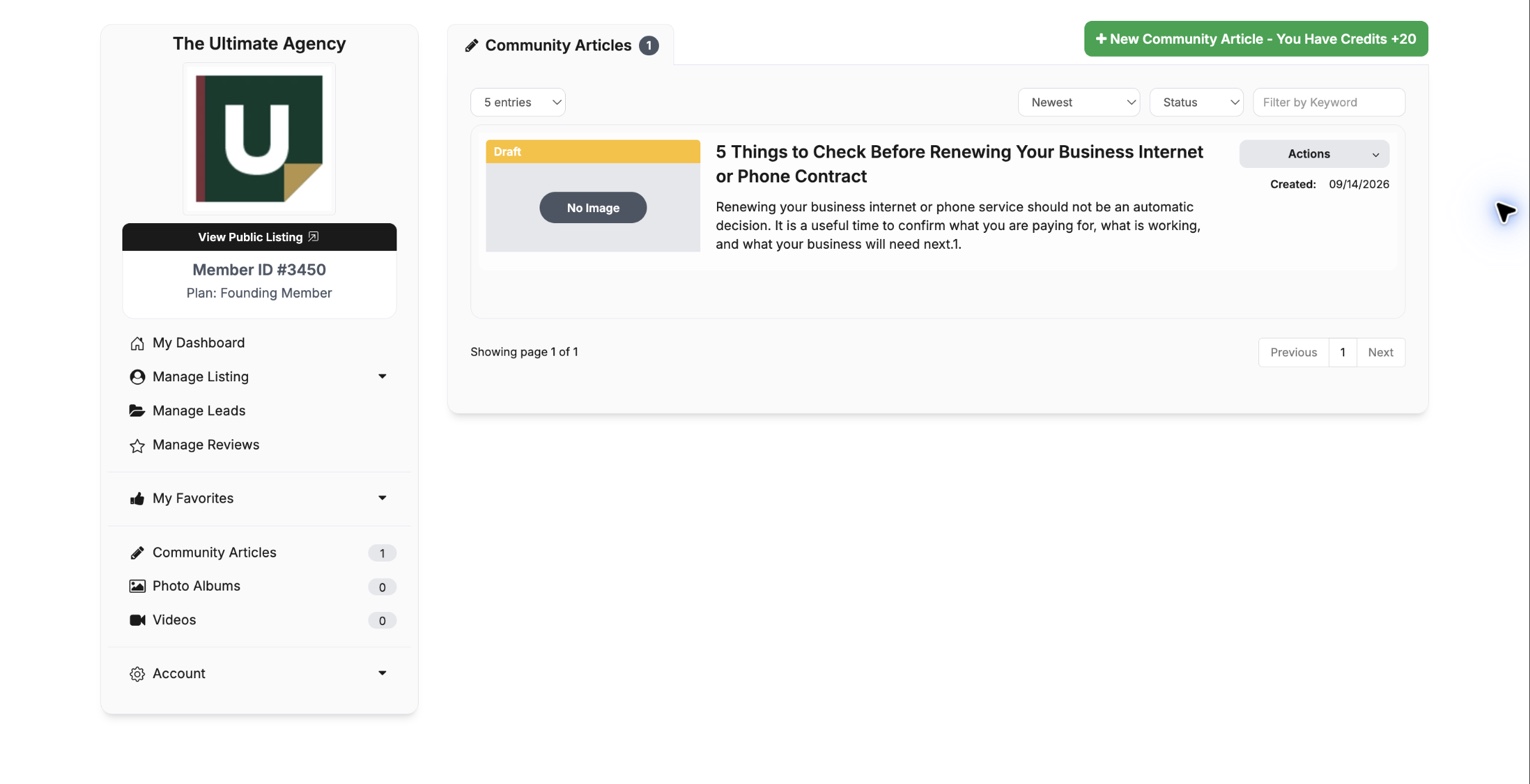
Sign in to your dashboard and select Community Articles in the left menu. This page shows every draft and published article connected to your listing.
Select New Community Article to start a new post.
Advisor content guide
Share practical expertise, give buyers a reason to trust your perspective, and add useful content to your advisor presence.
Step by step
The screenshots use The Ultimate Agency as a Founding Member example. Your article count, available credits, and listing details may be different.
Sign in to your dashboard and select Community Articles in the left menu. This page shows every draft and published article connected to your listing.
Select New Community Article to start a new post.
Leave Publish set to No while drafting. When you select Save Changes, the article will be stored as a draft and will not appear publicly.
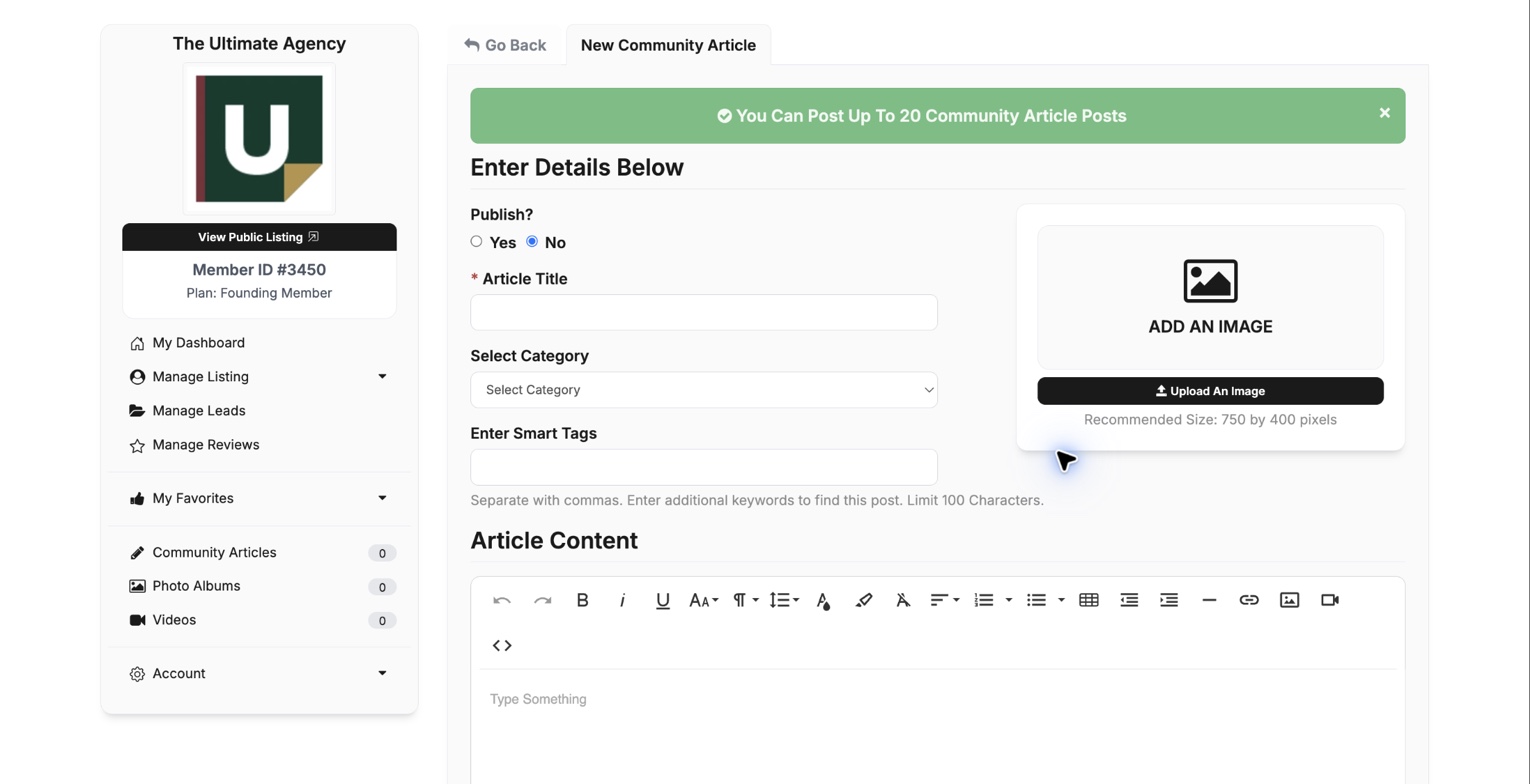
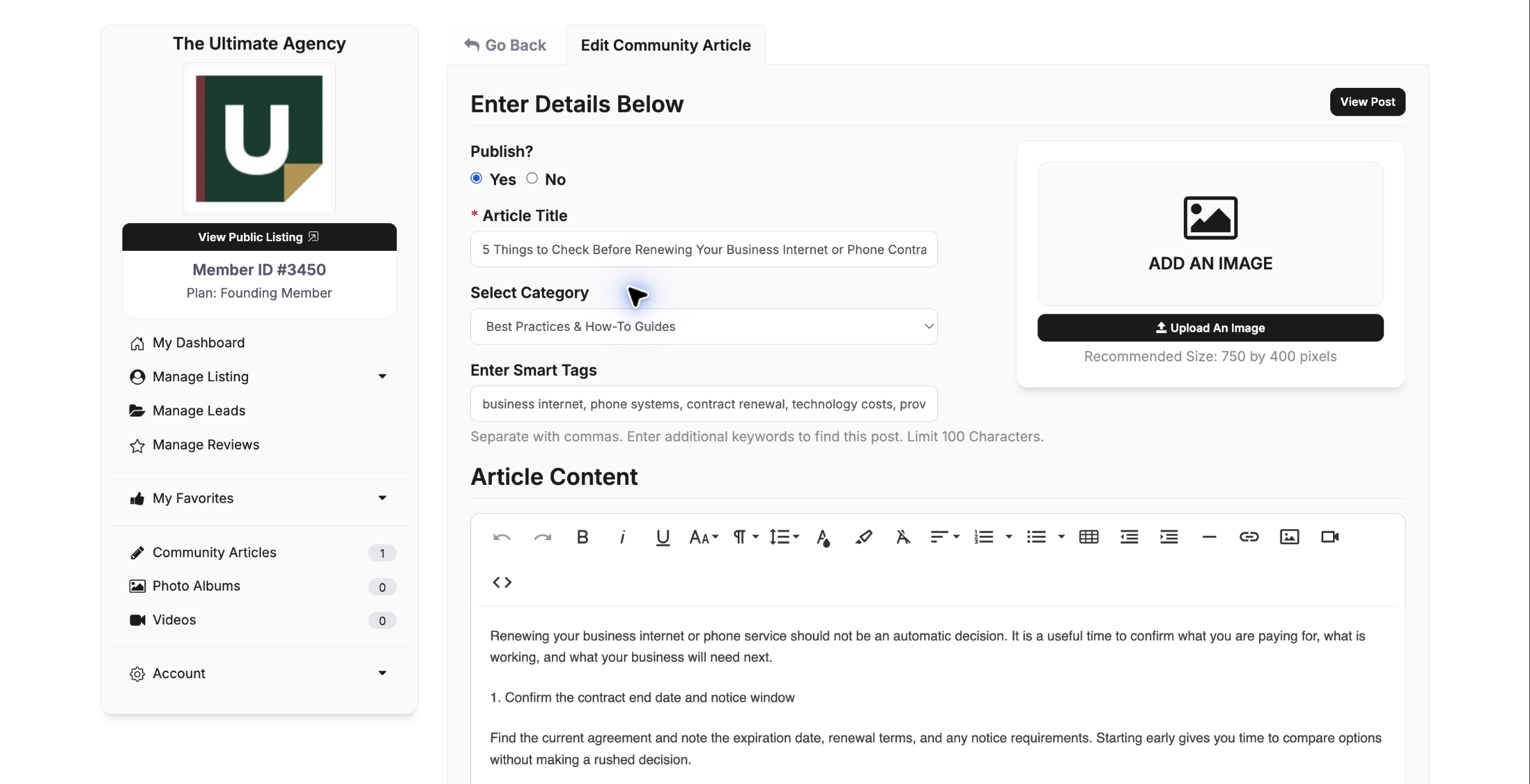
Write a specific title that promises a clear answer. Choose the category that best describes the content, then add relevant Smart Tags separated by commas. Tags should describe the buyer’s problem and the technology involved, not your company name repeated in different ways.
A featured image is optional, but it helps the article look complete when it appears with other content. Prepare a clean 750 × 400 pixel image, select Upload An Image, choose the file, and confirm that the preview appears before saving.
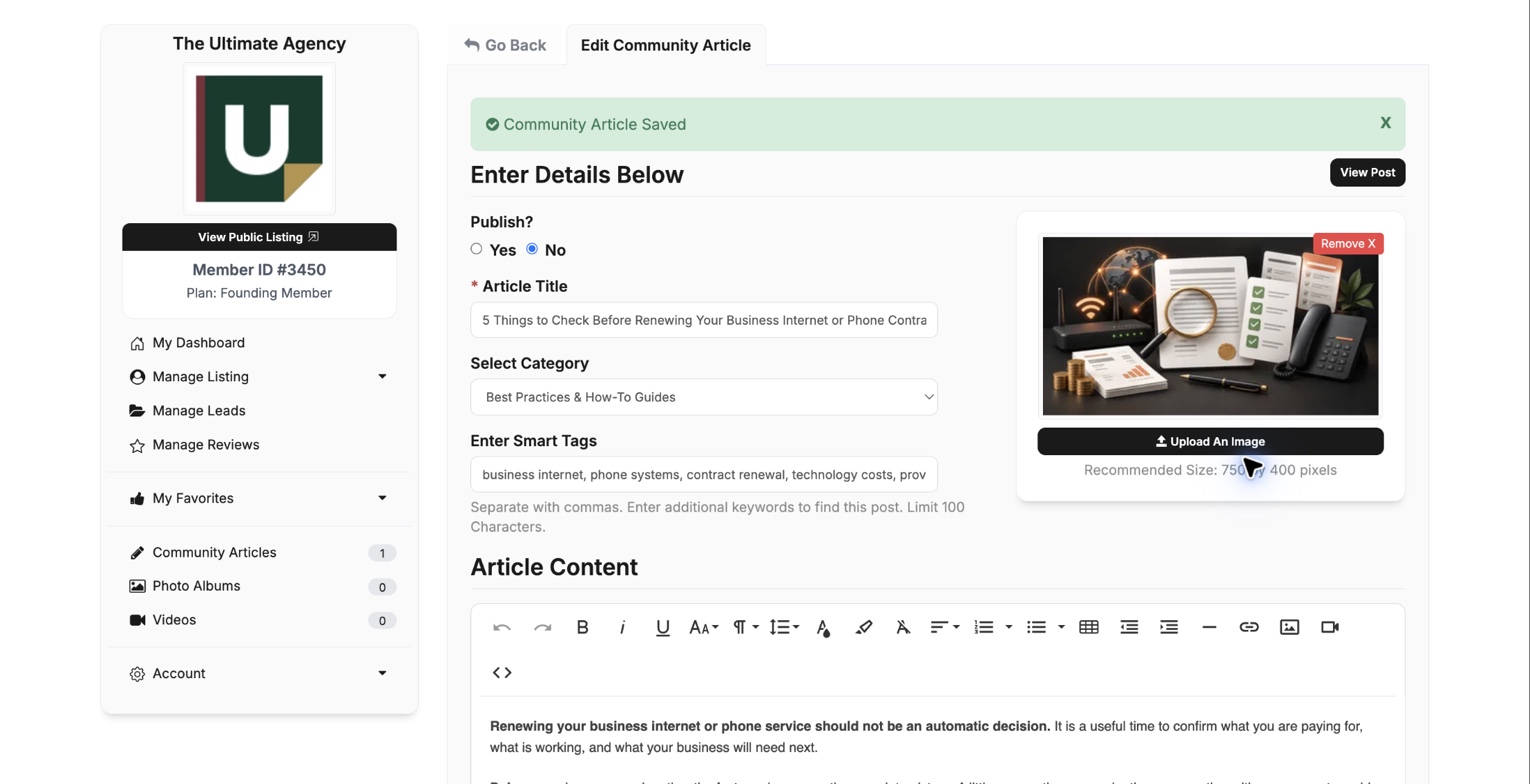
Start with the problem, organize the answer with short headings, and keep paragraphs easy to scan. The formatting toolbar is the best choice for most articles. Use it to create headings, bullet points, links, and bold emphasis without needing to write code.
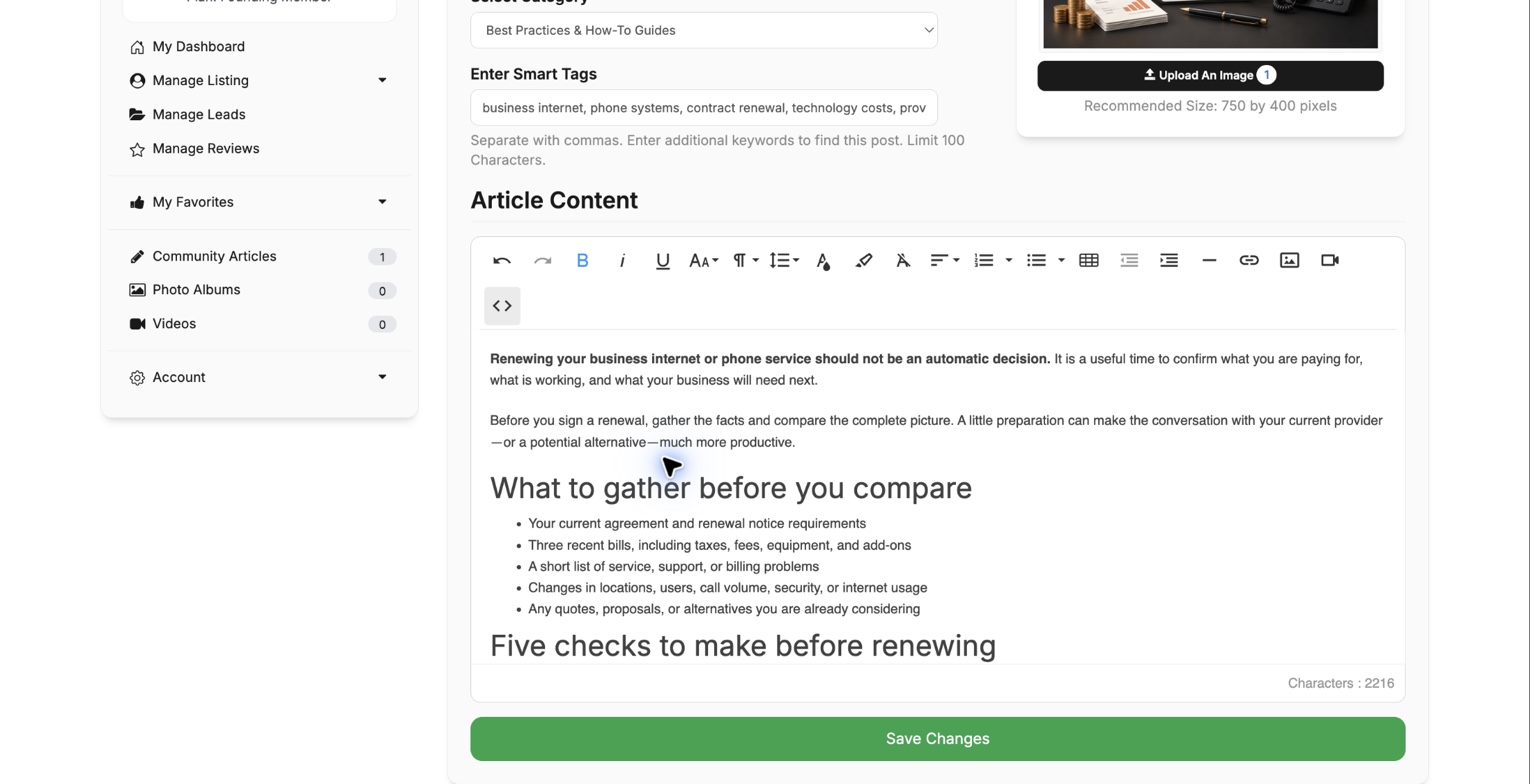
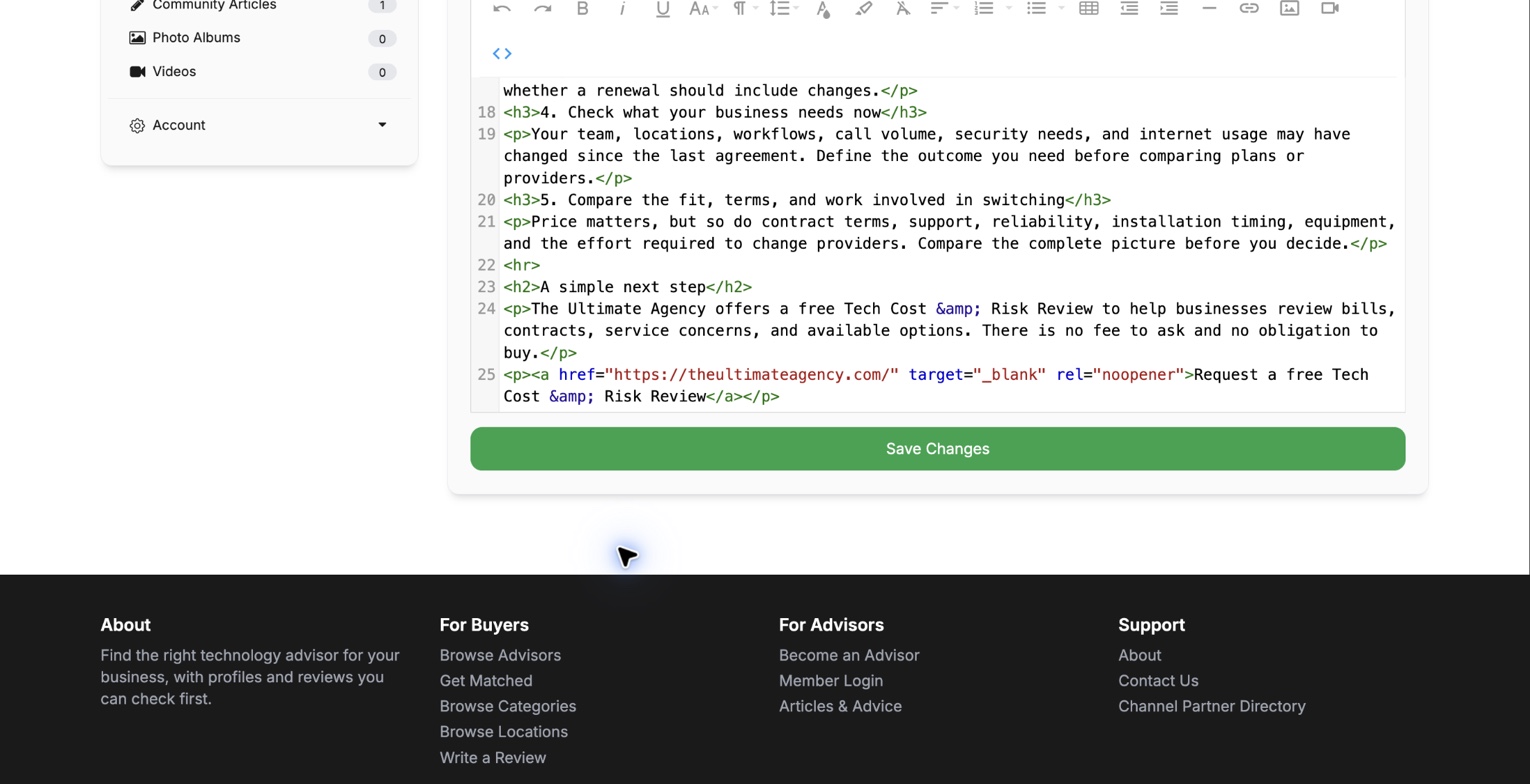
Select Save Changes with Publish set to No. Confirm that the green Community Article Saved message appears, then return to the Community Articles page to verify that the post is labeled Draft.
Open the draft again and proofread the title, first paragraph, headings, links, image, and final call to action.
When your review is complete, open the draft, set Publish to Yes, and select Save Changes. The article will become publicly viewable on TechnologyAdvisor.com.
After publishing, select View Post and read the public version once more. Check the image crop, headings, links, spacing, and the way the article appears on a phone.
Article ideas
Choose a narrow topic you can answer honestly from experience. One useful answer is stronger than a broad article that tries to cover everything.
Explain what a buyer should gather, compare, or verify before choosing a service or renewing a contract.
Show buyers the avoidable problems you see and what they can do differently.
Translate a confusing technology, contract term, or risk into practical business language.
Help buyers compare options by fit, cost, terms, support, risk, and the work involved in changing.
Final check
Run through this short review before changing Publish to Yes.
The title clearly says what the reader will learn.
The first paragraph gets to the buyer’s problem quickly.
Headings make the answer easy to scan.
Claims are accurate and do not promise a guaranteed result.
Links and contact information go to the right place.
The final next step is helpful, specific, and low pressure.
Use the listing completion guide to make sure the profile behind your article is ready for interested buyers.
Use the review collection guide to support your expertise with genuine client feedback. The first 30 days plan shows where publishing fits in the full sequence.
Our team can help you choose a topic or work through the publishing steps.