Advisor setup guide

Complete your TechnologyAdvisor.com listing

Turn your claimed listing into a clear, credible profile that helps the right buyers understand your expertise and contact you with confidence.

Open your dashboardAllow about 15–20 minutes if you have your logo, links, and company details ready.

Have these ready

  • A square company logo or professional headshot
  • Your website, booking link, and business location
  • The technology categories, industries, and markets you serve
  • A short explanation of who you help and how

Step by step

Build a buyer-ready listing

The screenshots use The Ultimate Agency as a Founding Member example. Your information and completion status will be different.

Open your dashboard

Sign in and open My Dashboard. The four listing sections appear across the top and under Manage Listing: Basic Information, Profile Photo, Additional Details, and About Me.

Your completion indicator helps show which sections still need attention. You can also select View Public Listing at any time to check what buyers see.
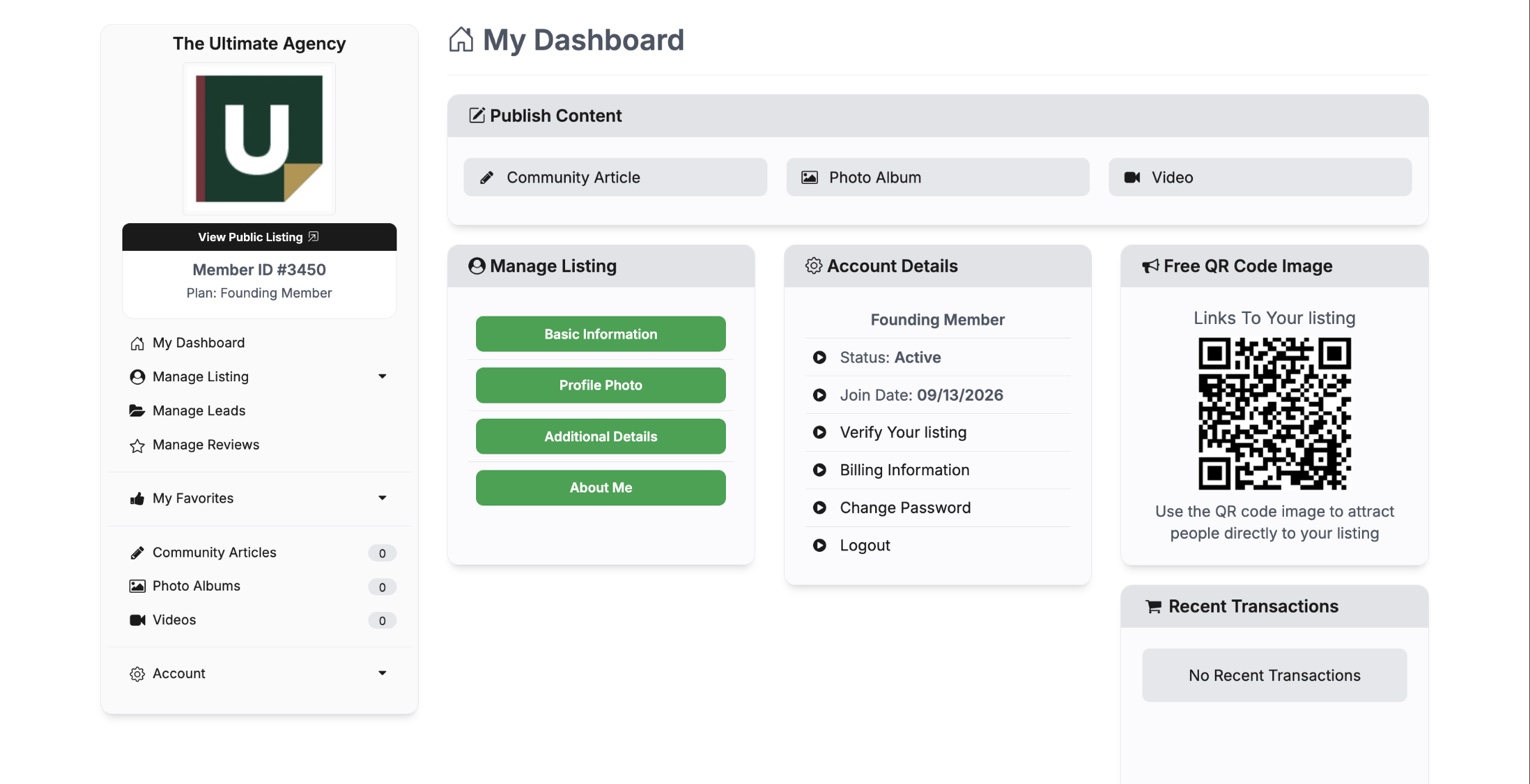
The Ultimate Agency Founding Member dashboard showing the four Manage Listing sections
A green section is complete. A yellow section still needs attention.

Complete your basic information

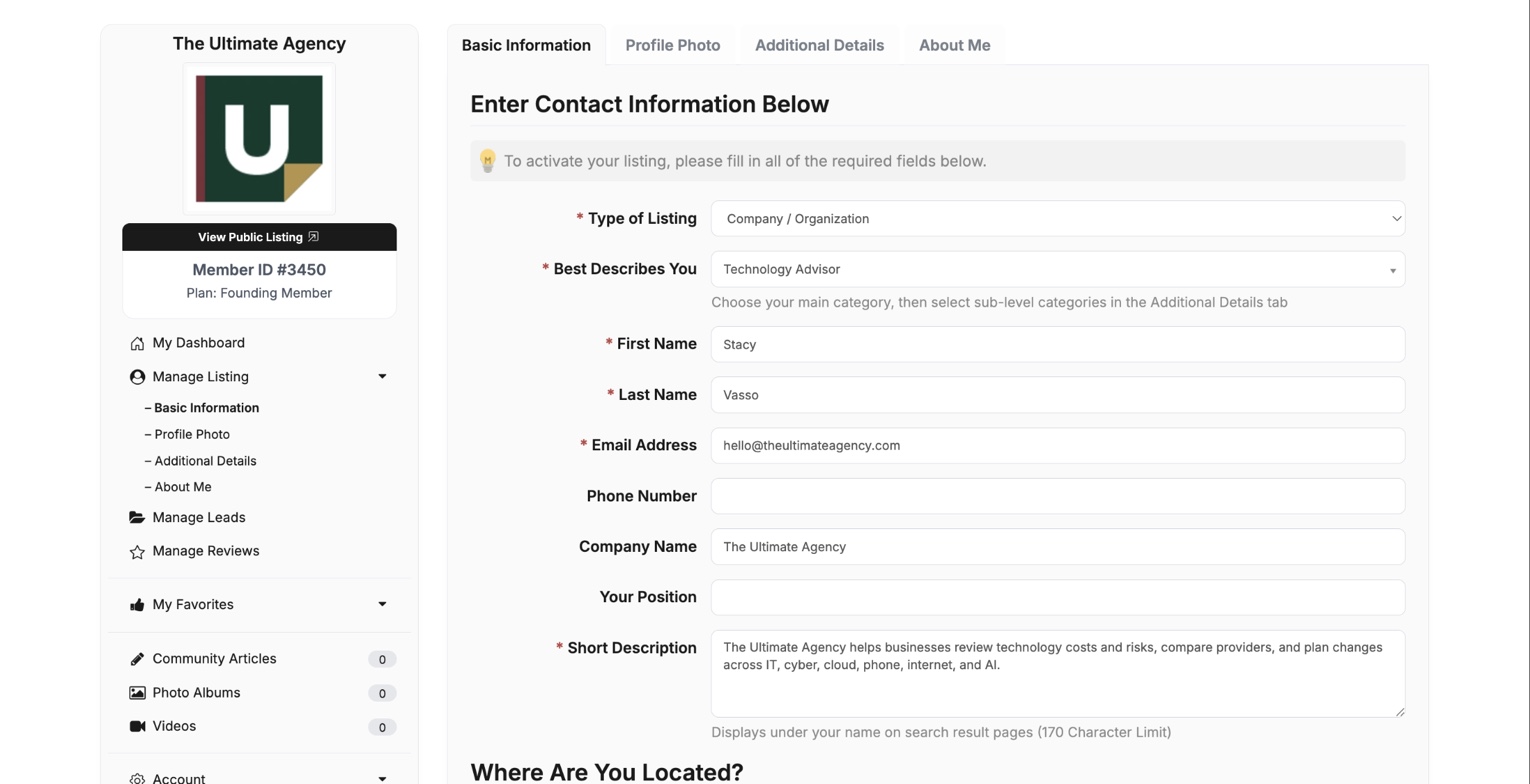
Confirm your listing type, main category, contact information, company name, location, website, and any links you want buyers to use. Add a booking link if you want visitors to schedule directly.

Give extra attention to the Short Description. It appears with your name in search results, so lead with the buyer and the outcome—not a slogan.

Company listingUse the company name and shared business details buyers will recognize.
Personal listingUse your real name, role, and professional contact information.
The Ultimate Agency Basic Information form with contact details and a buyer-focused short description
Use accurate business information and only publish contact details you want buyers to see.

Upload your logo

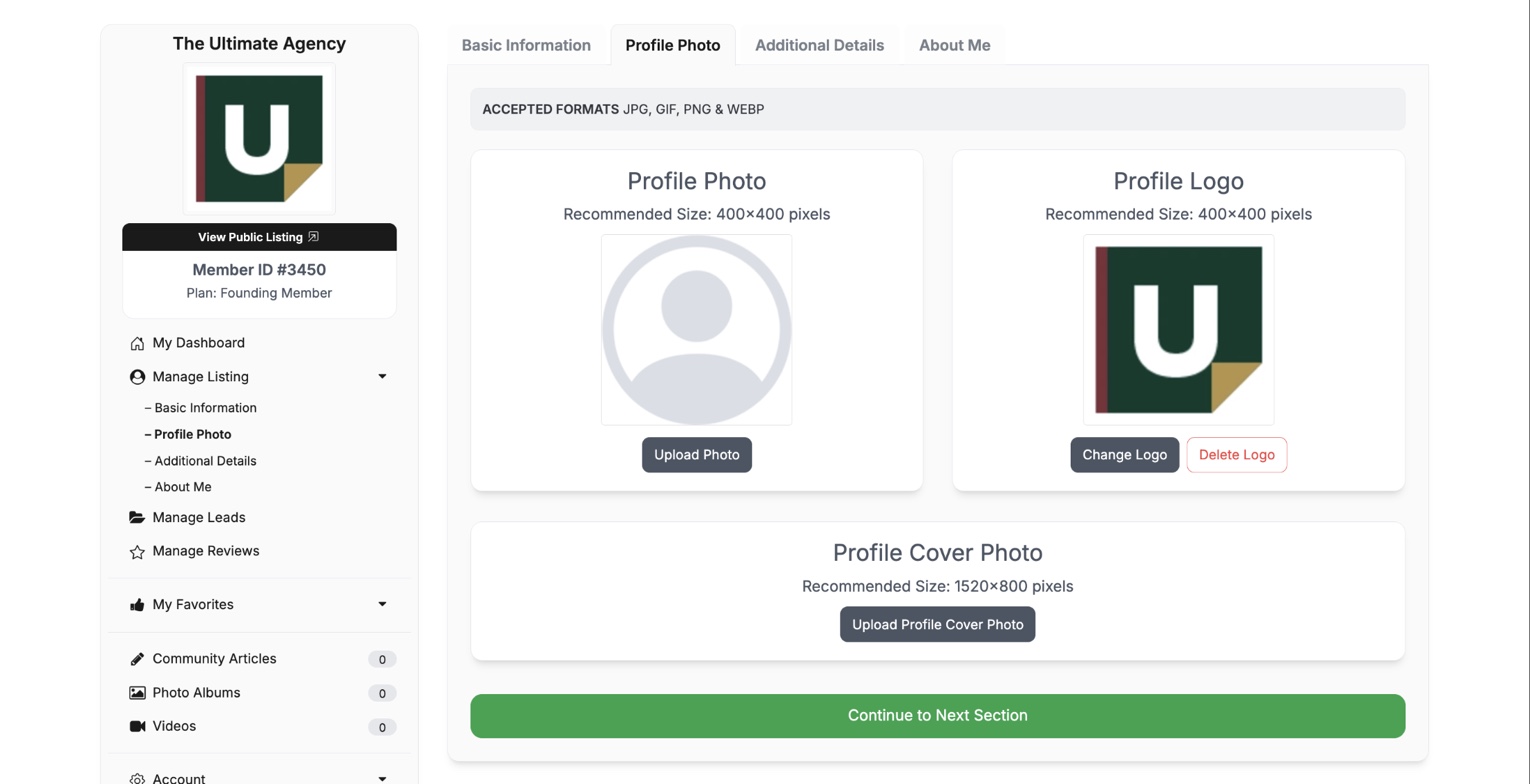
For a company listing, use Profile Logo and upload a clean square logo. The dashboard recommends 400 × 400 pixels and accepts JPG, GIF, PNG, and WEBP files. Personal listings should use Profile Photo for a current professional headshot.

Founding Members can also add a Profile Cover Photo. Use a simple 1520 × 800 pixel brand image that supports the listing without placing important words near the edges.

Keep it recognizableAvoid small text, busy backgrounds, and artwork that becomes unclear when shown as a thumbnail. Preview the image after uploading.
Founding Member profile-image screen showing separate Profile Photo, Profile Logo, and Profile Cover Photo controls
Company listings should use the logo control. The profile-photo control is intended for an individual advisor.

Select the details that help buyers find the right fit

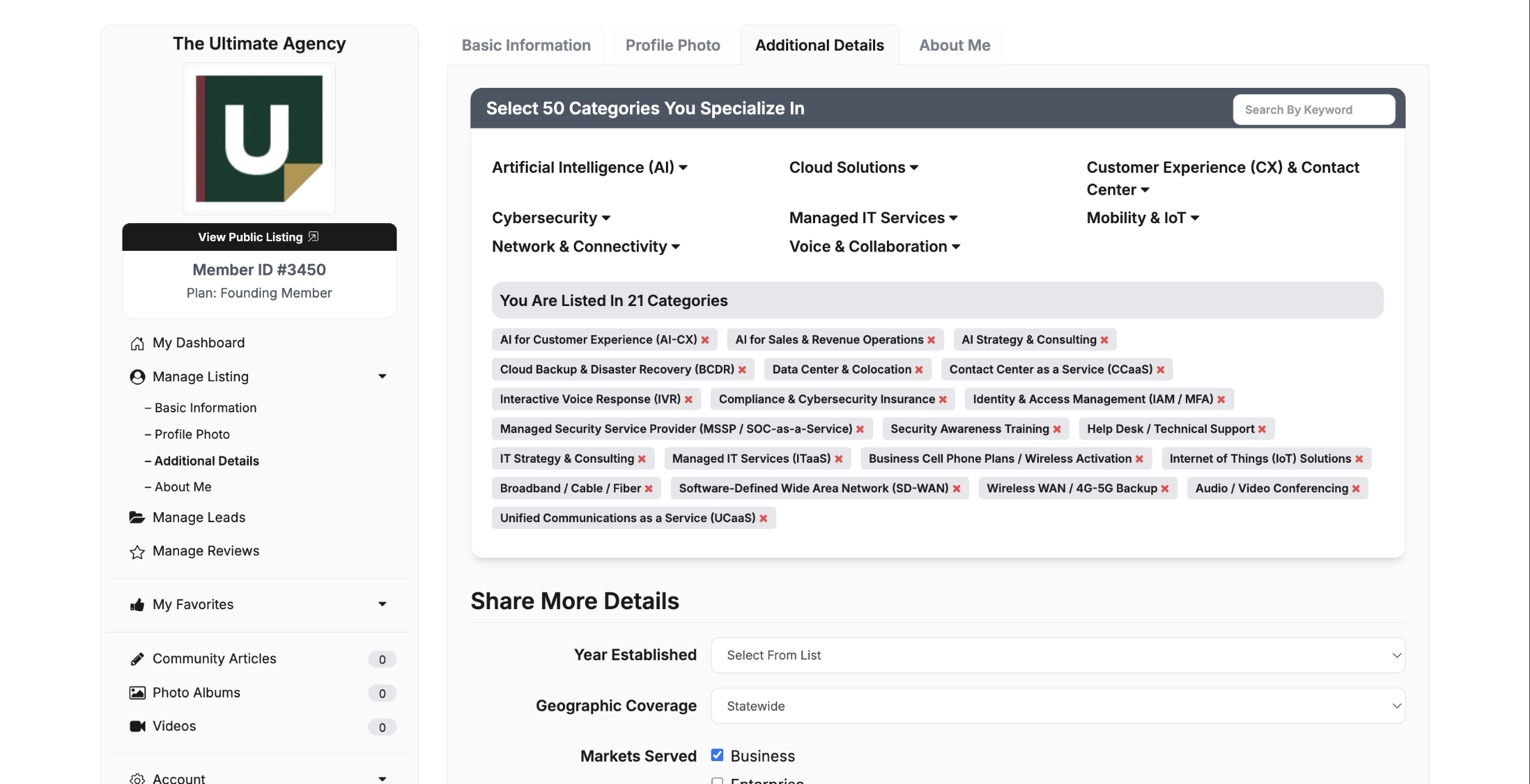
In Additional Details, select the categories you genuinely advise on. Then complete your year established, geographic coverage, markets served, industries served, supplier network, certifications, vendor partnerships, honors, and optional company overview PDF.

Accuracy is more persuasive than volume. Choose the categories and industries where you can confidently help a buyer—not every available option.

The Ultimate Agency Additional Details screen showing selected specialties and company details
These selections help explain your expertise and the kinds of buyers you are equipped to serve.

Write an About section buyers can understand

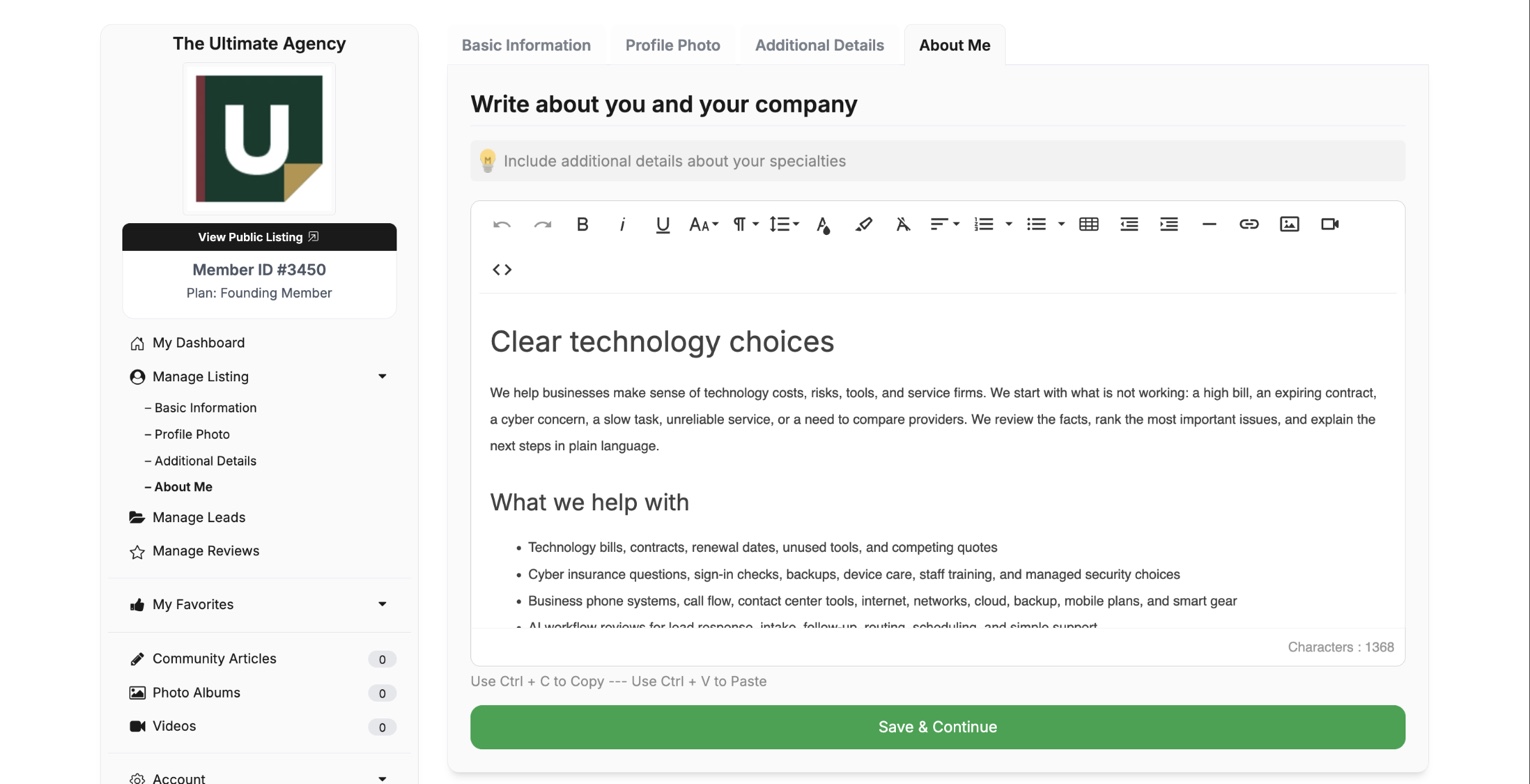
Your About section should sound like a capable advisor speaking plainly to a business owner. Explain who you help, the decisions you support, the technologies you know, and what makes working with you different.

A simple structure that works

[Company or advisor] helps [buyer type] make confident decisions about [technology areas]. We support clients across [industries or geography]. Buyers work with us because [specific approach, experience, or differentiator].

The Ultimate Agency About Me editor containing a clear buyer-focused company description
Keep paragraphs short, remove unnecessary jargon, and make the first two sentences useful on their own.

Preview the listing as a buyer

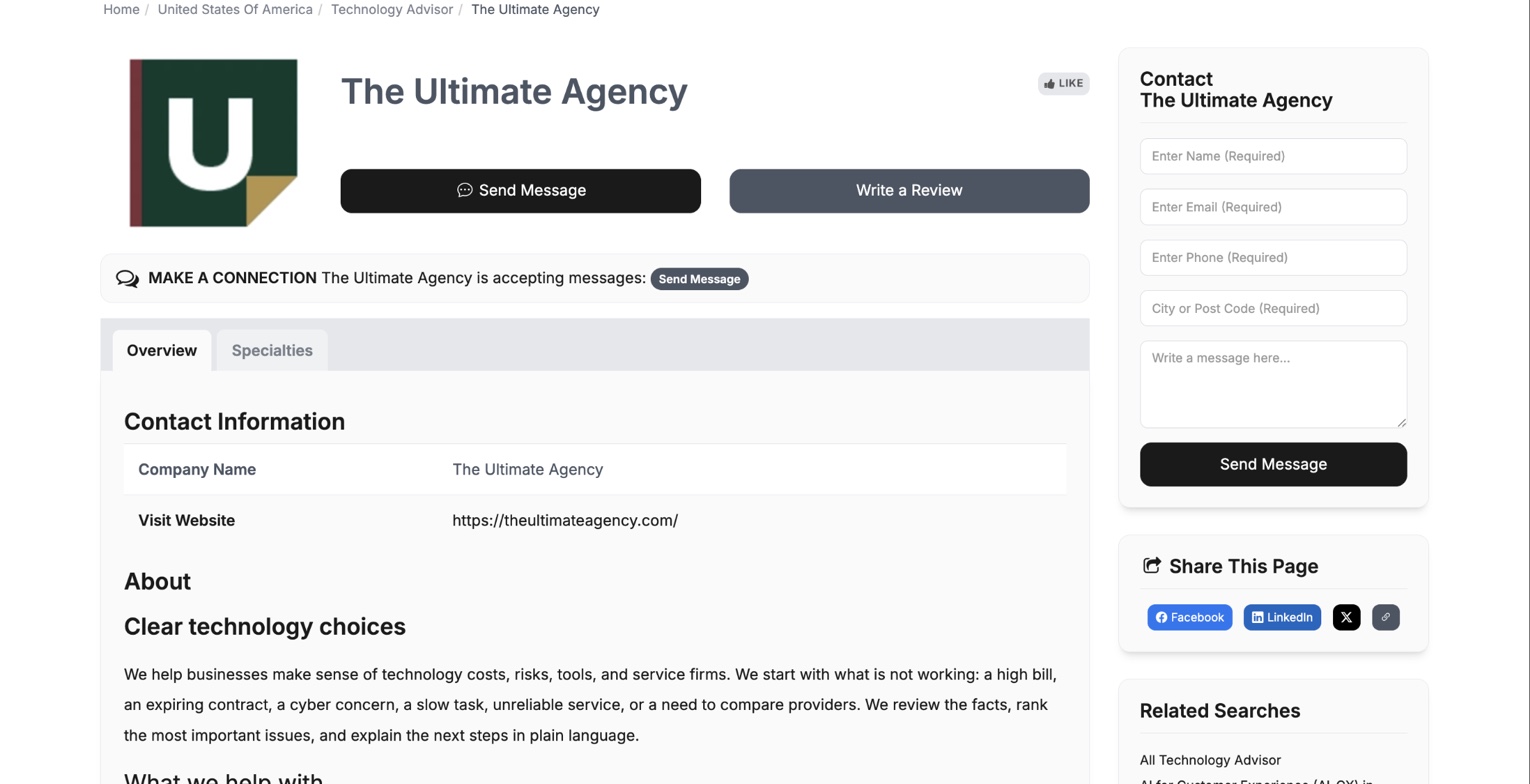
Select View Public Listing from the dashboard. Check the logo or profile photo, company name, location, website, About section, company details, specialties, and contact action. Correct anything that is outdated, vague, or incomplete.

The Ultimate Agency public listing showing its logo, contact actions, company information, and About content
Some saved changes may take a short time to appear. Refresh the public page before making the same edit again.

Final check

Would a buyer feel confident contacting you?

Before calling the listing complete, read it once from the buyer’s point of view.

It is immediately clear who you help and what technology decisions you support.

Your company identity, location, website, and contact path are accurate.

Your specialties, industries, and geographic coverage reflect your real experience.

Your About section sounds specific, credible, and easy to understand.

Your logo or headshot remains recognizable at thumbnail size.

A buyer can see a clear reason to send a message or learn more.

Collect client reviews

Once your listing is complete, use the review collection guide to turn client experience into visible proof.

Keep it current

Review your listing whenever your specialties, service area, team, company links, or positioning changes. Use the first 30 days plan to make that review part of a complete activation routine.

Need a hand?

Our team can help you work through your listing setup.